
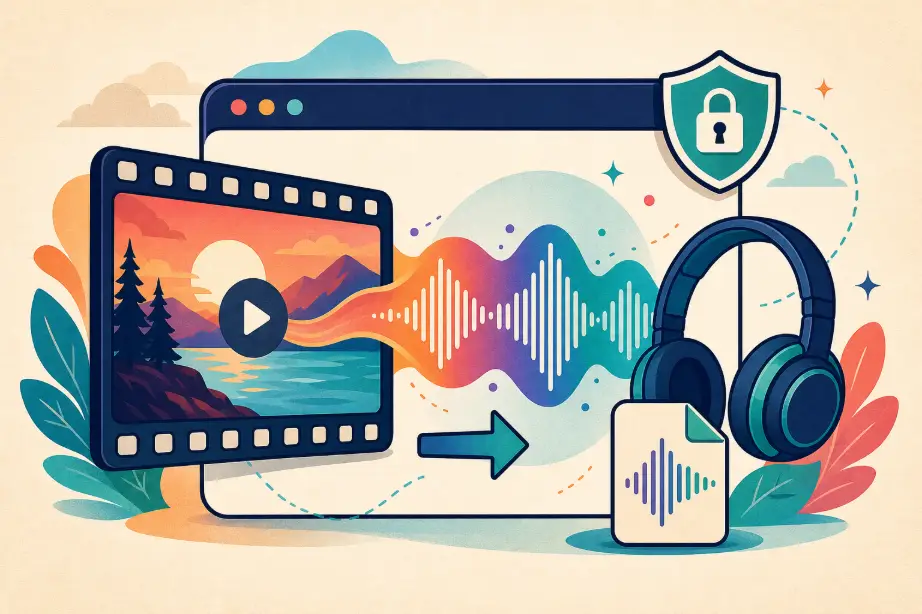
No Uploads Required! How to Extract Audio from Video?
Have you ever found yourself in need of this: Wanting to turn a brilliant YouTube speech into a podcast to listen to on the go? Wanting to save just the background music from a family home video? Or needing to extract audio from a lengthy online course video to review and organize your notes?
In the past, to achieve this, you usually had only two choices: installing bulky and potentially expensive professional software, or using online converters that require file uploads. The former is troublesome, while the latter leaves you with a nagging worry: How is my privacy guaranteed after my video file is uploaded to an unfamiliar server? This concern is especially acute when the video content involves corporate meetings, private footage, or sensitive material.
Today, we are introducing a brand-new solution—Audio Extractor. It completely revolutionizes the traditional process by utilizing cutting-edge WebAssembly technology to achieve the feat of processing video-to-audio conversion entirely locally within the browser. No installation, no uploads, blazing-fast processing—keeping privacy and security firmly in your own hands.
Core Highlights: Why Choose This Local Processing Tool?
1. 100% Privacy & Security: Your Device is Your Server
This is the core competitive advantage of Audio Extractor. We promise and deliver "Zero Upload" processing.
- Technical Principle: Traditional online tools require you to upload files via the network to a remote server for processing, and then download them back. Audio Extractor, however, utilizes WebAssembly technology. You can think of it as a "high-performance webpage virtual machine" that allows your browser to run like local software, directly utilizing your computer's computing resources (CPU) to process video files.
- What does this mean? Your video file never leaves your computer. The entire process of decoding, separating audio streams, and encoding into a new audio format is completed entirely within the browser tab right in front of you. With no intermediate servers, any possibility of data being intercepted, leaked, or misused during transmission and storage is eliminated. For users dealing with sensitive content, this offers irreplaceable peace of mind.
2. Blazing Fast Experience: Say Goodbye to Long Uploads and Waits
Since the most time-consuming network steps of "uploading to server" and "downloading from server" are eliminated, processing speed depends entirely on your local computer's performance.
- No Network Speed Limits: Even if your internet connection is poor, processing a 1GB video file is as fast as using local software. You save all the time usually spent on network transmission.
- Zero Data Usage: The entire process consumes no upload or download data, making it very friendly for users with limited bandwidth or metered connections.
Format Guide: MP3, WAV, or AAC? How to Choose the Best Audio Format for You?
After converting video to audio, choosing the right format is crucial as it determines audio quality, file size, and compatibility. Audio Extractor supports mainstream high-quality output formats. Here is your selection guide:
MP3: The Universal King, The Balanced Choice
- Features: A lossy compression format that uses smart algorithms to remove sound data that is mostly inaudible to the human ear, thereby significantly reducing file size.
- Best Scenarios:
- Usage Tip: In the tool, you can usually adjust the bitrate (e.g., 128kbps, 192kbps, 320kbps). The higher the bitrate, the better the sound quality, but the larger the file. 192kbps is the "sweet spot" balancing quality and size.
WAV: Lossless Quality, The Professional Choice
- Features: A lossless audio format that preserves all data from the original audio source completely intact without any compression, ensuring absolutely high fidelity.
- Best Scenarios:
- Note: WAV files are very large, typically 5-10 times the size of an MP3 file of the same length.
AAC: Efficient & Advanced, The Modern Choice
- Features: Also a lossy compression format, but it uses more advanced coding algorithms than MP3. At the same bitrate, AAC usually provides better sound quality than MP3; or, it achieves the same sound quality with a smaller file size.
- Best Scenarios:
Simple Summary:
- For compatibility and small size, choose MP3.
- For editing and archiving original sound, choose WAV.
- For Apple users and audiophiles, choose AAC.
Step-by-Step Tutorial: Done in Four Steps, Easy to Get Started
Using Audio Extractor is incredibly simple:
- Step 1: Access the ToolOpen the Audio Extractor web page in your browser. No registration, no login required—it's ready to use immediately.
- Step 2: Load VideoClick the "Select File" button, or directly drag and drop a video file from your computer (supports common formats like MP4, AVI, MOV, MKV, etc.) into the designated area on the page.
- Step 3: Set Parameters Select your desired format from the "Output Format" dropdown menu: MP3, WAV, or AAC. (If MP3 or AAC is selected) Adjust the Bitrate/Quality slider as needed. You can customize the output filename.
- Step 4: One-Click Convert & SaveClick the "Convert" or "Extract Audio" button. You will see a progress bar advancing on the page; this represents calculations happening locally on your machine. Once completed, the browser will automatically pop up a "Save File" dialog, allowing you to save the generated audio file to a specific location on your computer.
Throughout the entire process, your video data runs solely in your device's memory and is released immediately after processing—safe and efficient.
Conclusion
In today's world where data privacy is increasingly important, Audio Extractor represents a more responsible, user-centric technological direction. It cleverly combines powerful WebAssembly technology with common user needs, providing content creators, students, music lovers, and anyone who values privacy with a secure, private, efficient, and free browser-based video-to-audio solution.
Whether you want to extract background music from a Vlog, save lecturer audio from an online class, or treasure a highlight moment from a concert, you can now achieve your goal quickly and with complete peace of mind.
Experience this privacy-protecting online video-to-audio tool now, and secure both efficiency and safety. Bookmark this page for future needs!